Setting up the Hacking Environment: Installing Kali Linux on VirtualBox

I am a web3 developer and I am passionate about CyberSecurity
Also writes on Medium - medium.com/@sahilchandravanshi/
This guide demonstrates the easiest method for installing Kali Linux on Virtual Box on Windows and Linux.
One of the greatest Linux distributions for those interested in security and hacking is Kali Linux. Although installing Kali Linux by replacing the current operating system is a possibility, using it within a virtual machine is a better and safer choice.
It's also secure to use Kali Linux inside of a virtual machine. Whatever you do inside Kali Linux won't have an effect on your "host system”.
How to Install Kali Linux on VirtualBox
Here, I'll be using VirtualBox. You can use other tools like VMWare to set up the environment.
Although Kali Linux will be the focus of this article, you can install practically any other operating system as long as an ISO file or pre-built virtual machine save file is available.
📝Note: The same steps apply for Windows/Linux running VirtualBox.
We'll use a custom Kali Linux image created especially for VirtualBox. You may also set up a fresh virtual machine by downloading the Kali Linux ISO file, but why do that when there is a simple alternative?
1. Download and install VirtualBox
Downloading and installing VirtualBox from Oracle's official website is the first thing we need to do.
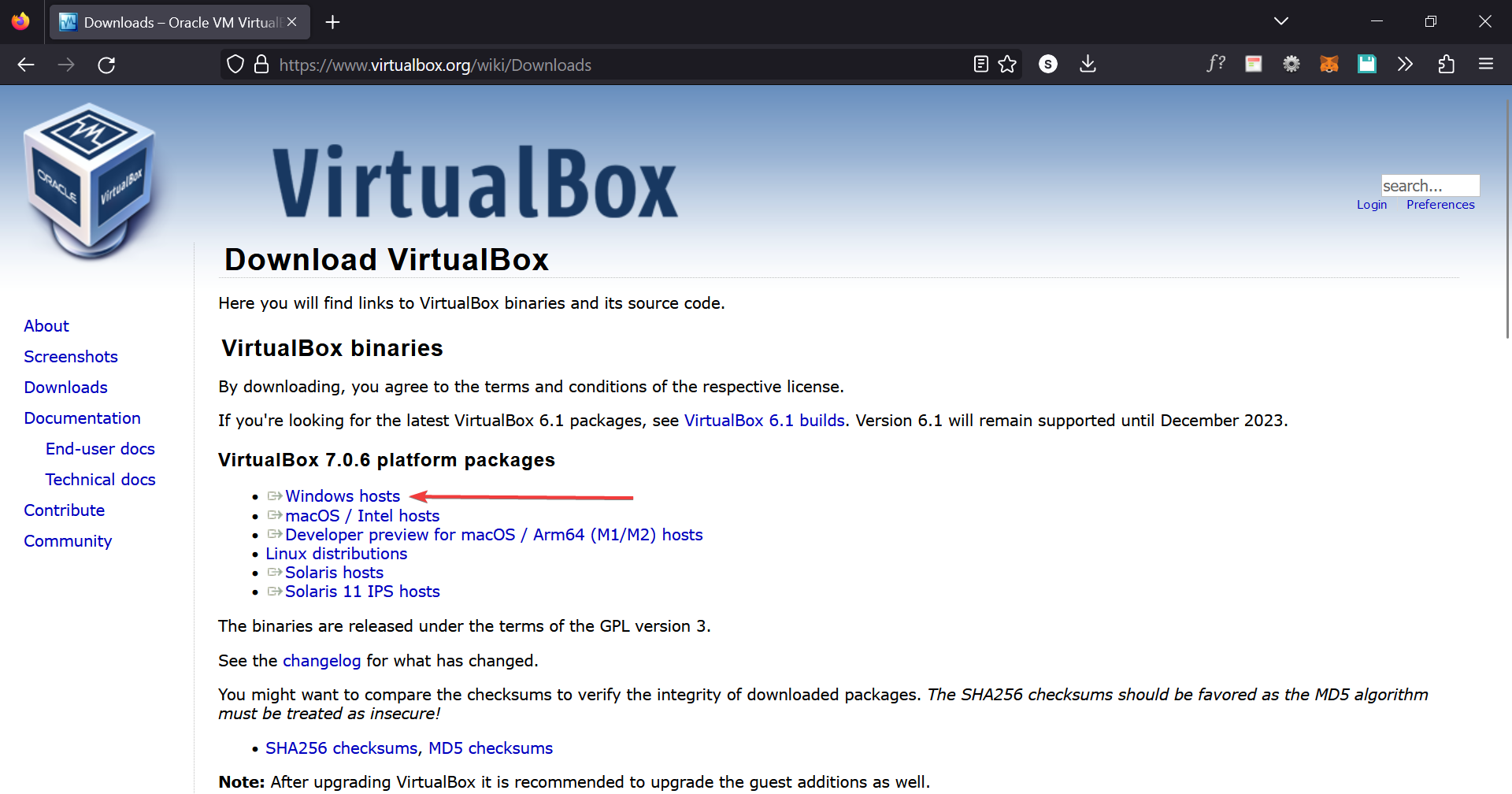
Download VirtualBox for your operating system. In this case, I am choosing the one for windows hosts.
Just double-click the installer after downloading it to begin installing VirtualBox.
2. Download a ready-to-use virtual image of Kali Linux
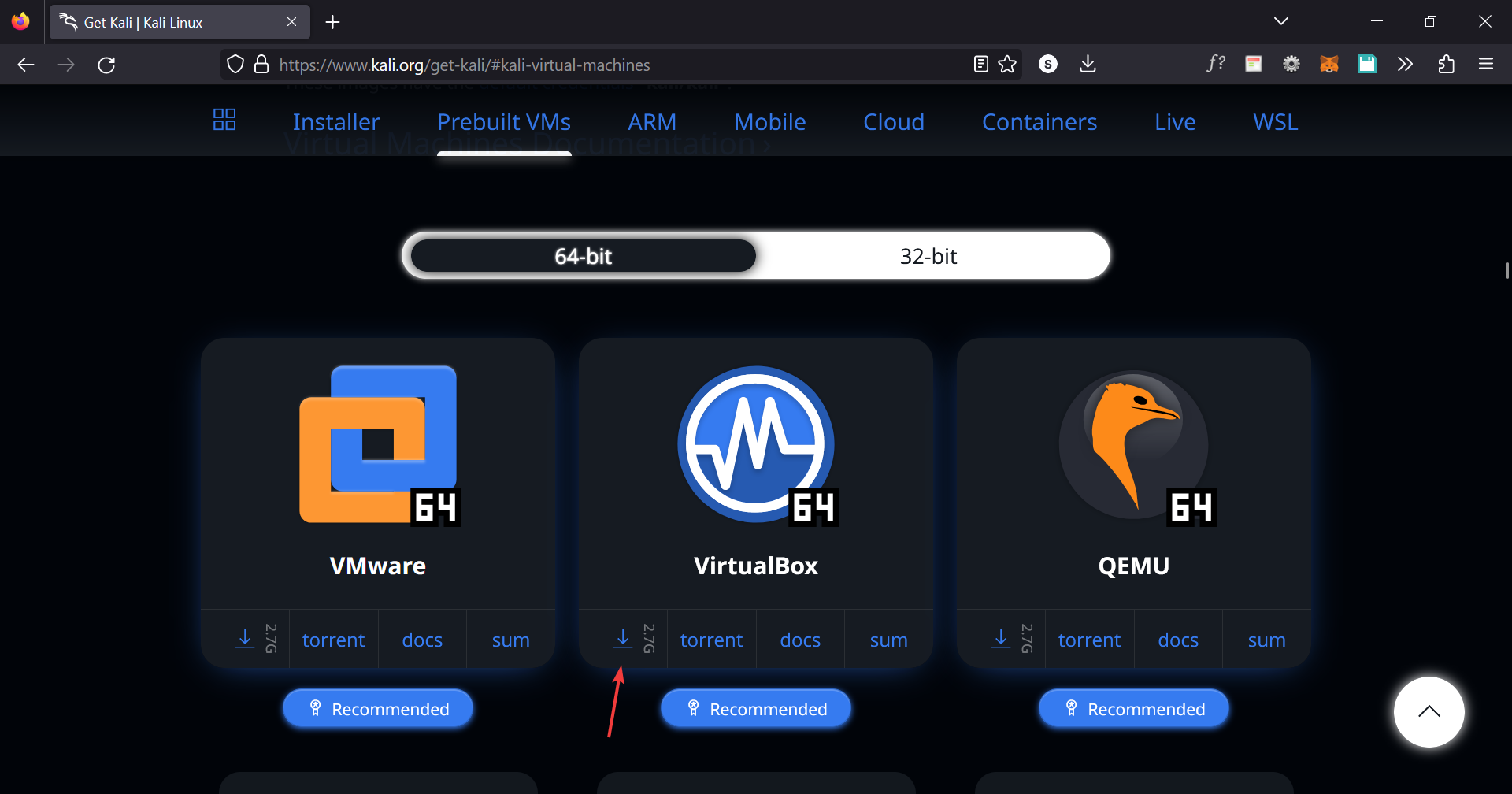
Once the VirtualBox has been successfully installed, go to Kali Linux's official page for virtual machine downloads to get the VirtualBox VM image.
Choose the download option for Virtual Box.
3. Install Kali Linux on Virtual Box
Once the Kali Linux image has been downloaded, all you have to do is, import it to VirtualBox in order to make it work.
Step 1: Extract the folder using any tool like 7zip or WinRAR on the drive you want to use for your Kali Virtual Machine.
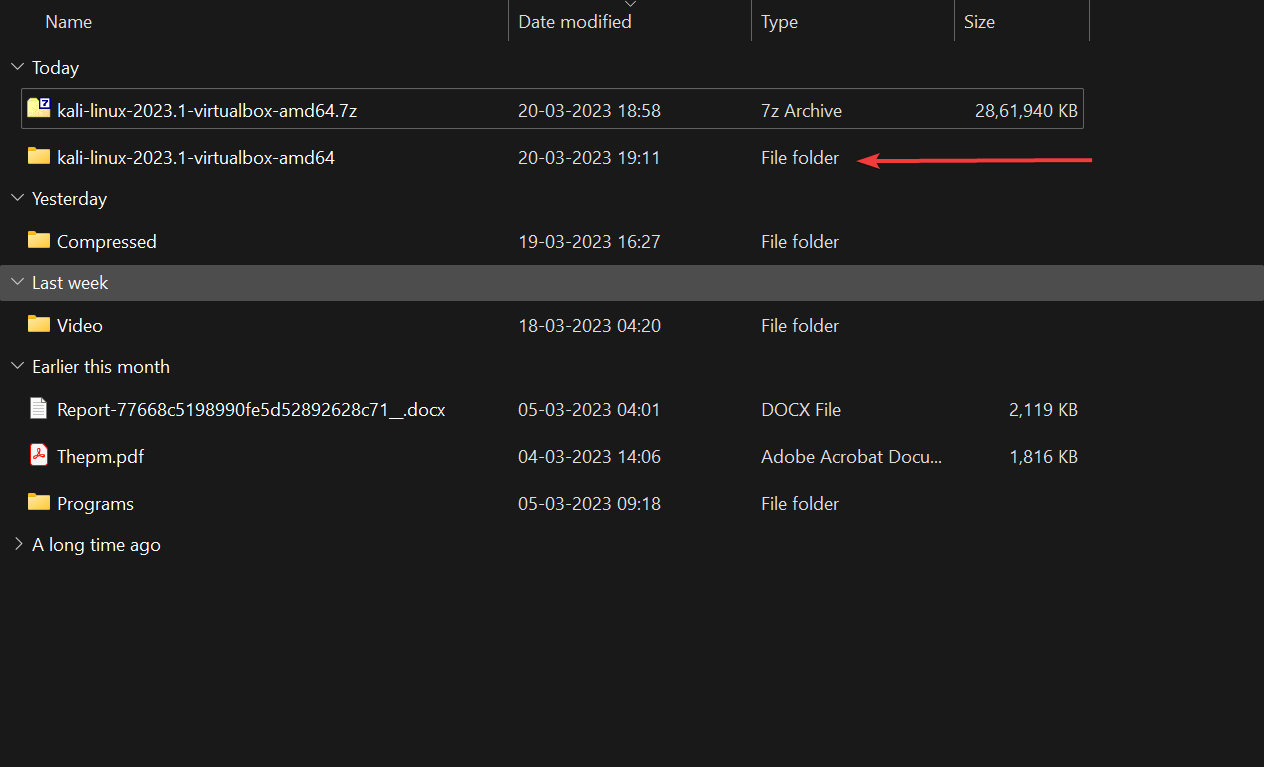
Step 2: If a .ova file is created, then double-click on .ova file to create a virtual machine otherwise,
Open the extracted folder and double-click on
.vboxfile to create a virtual machine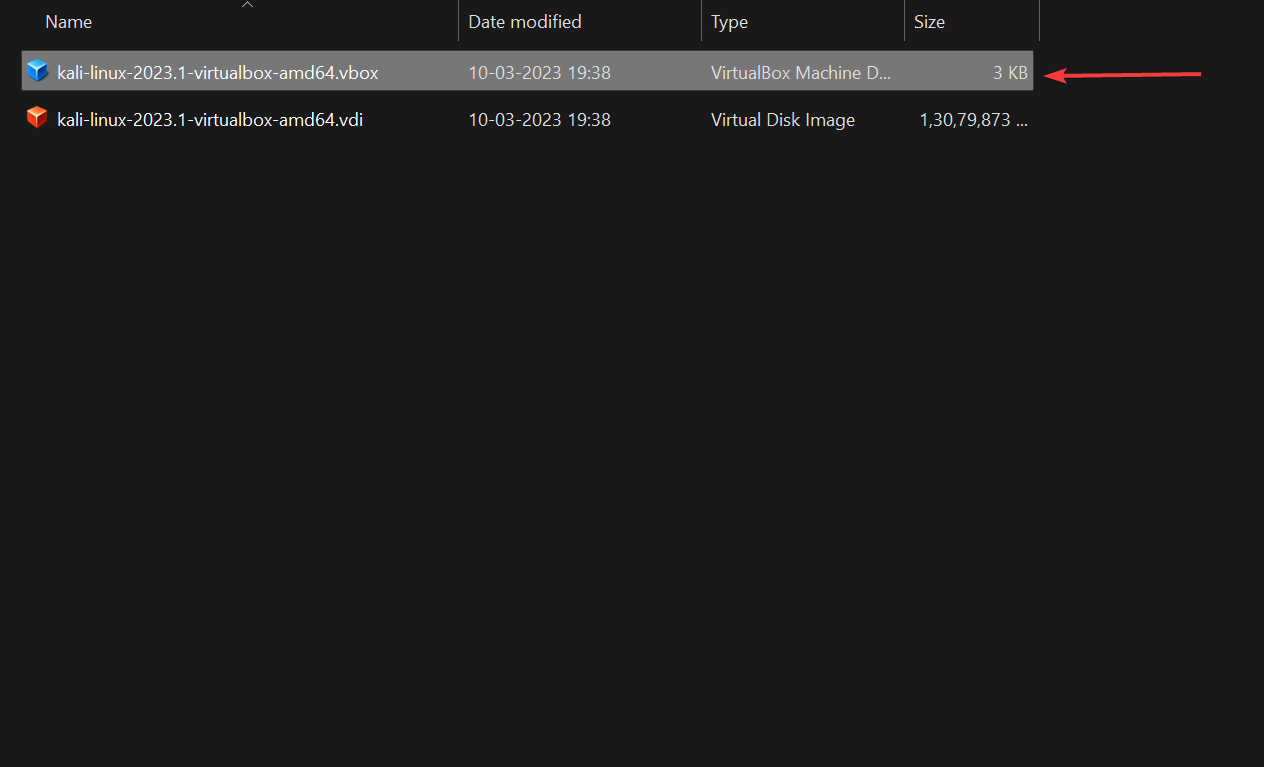
You can see, a new Kali Linux virtual machine is created.
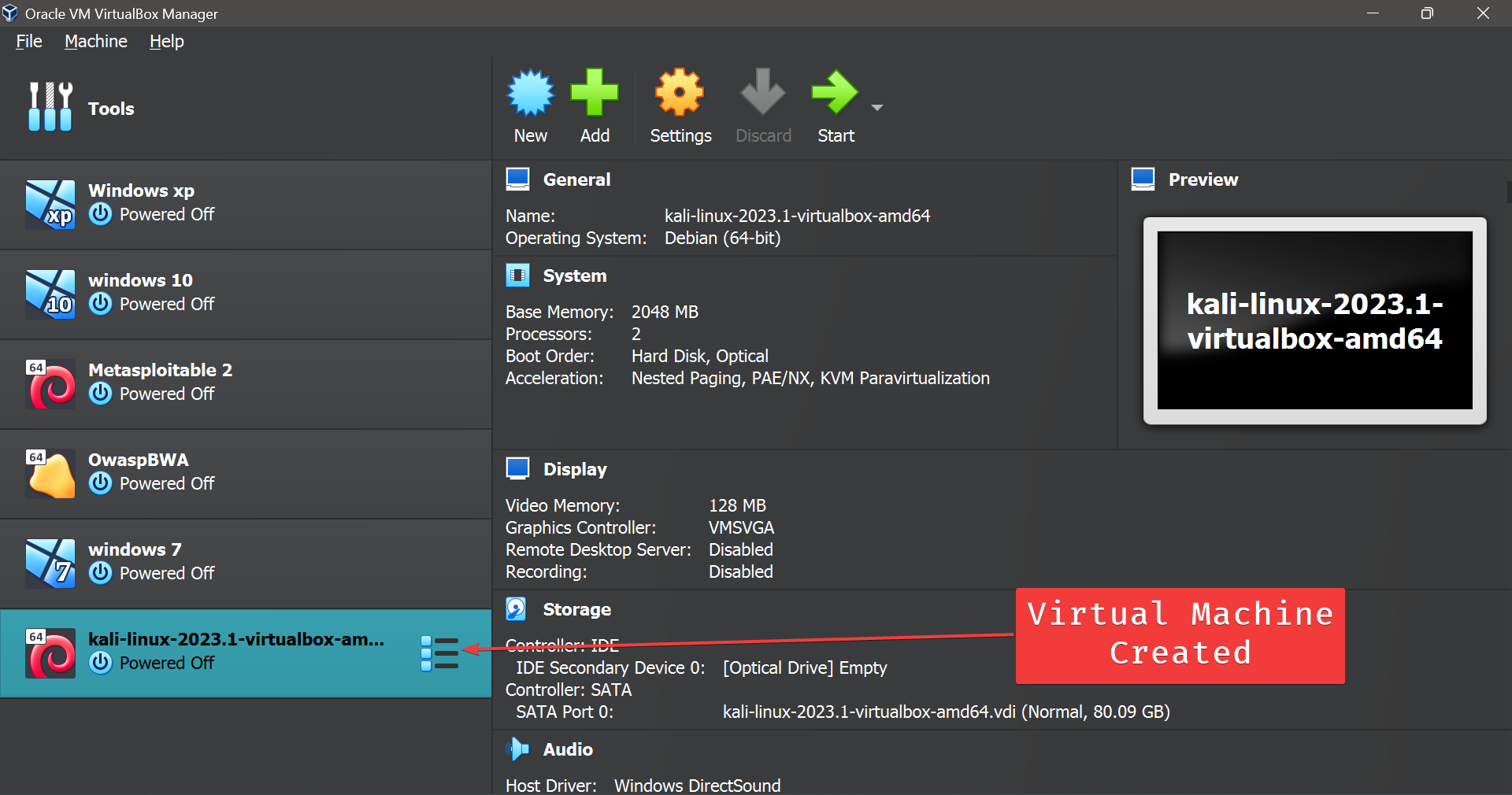
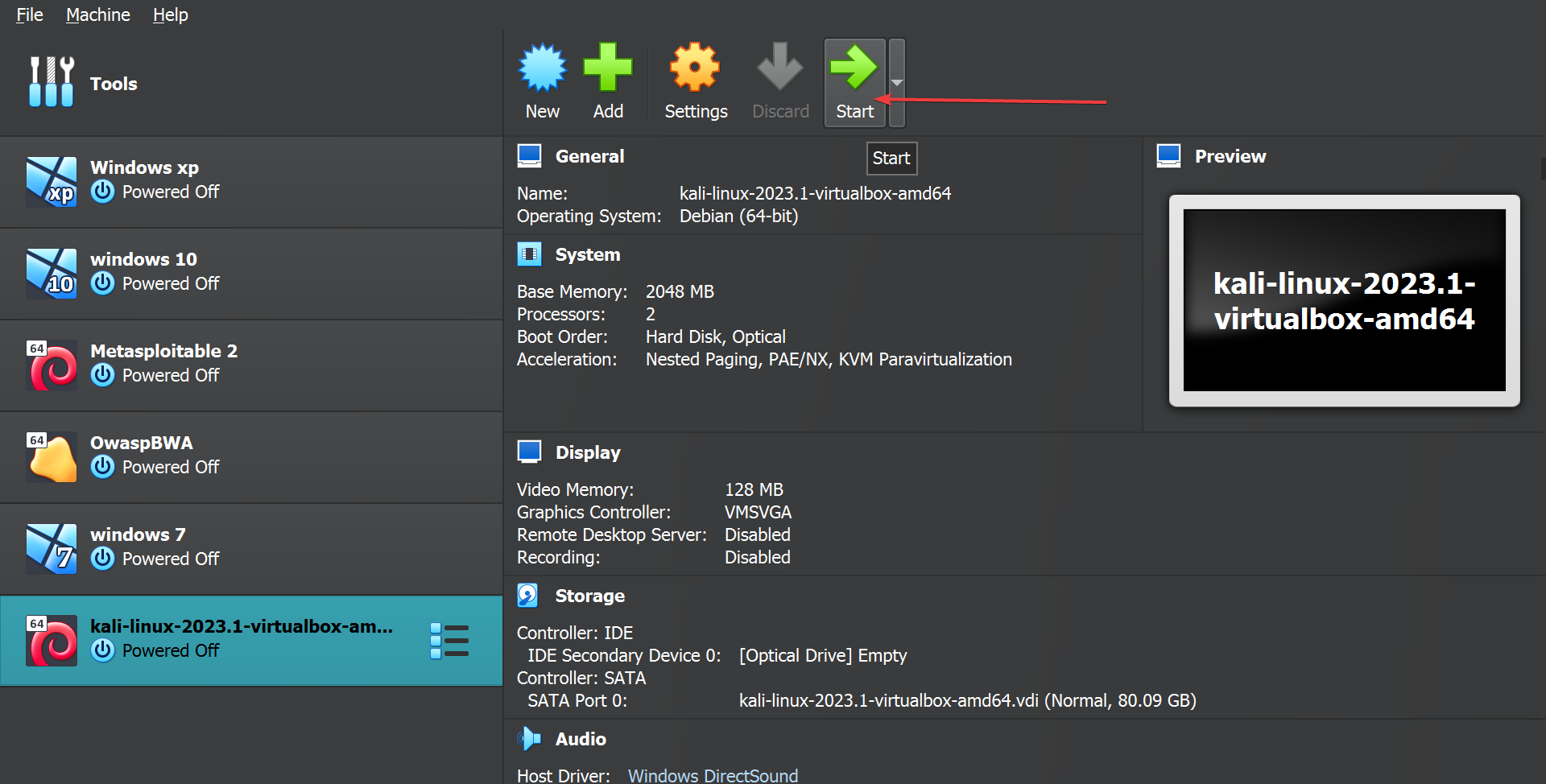
Step 3: Double-click or just select the Kali Linux virtual machine and click start to run the newly created virtual machine.
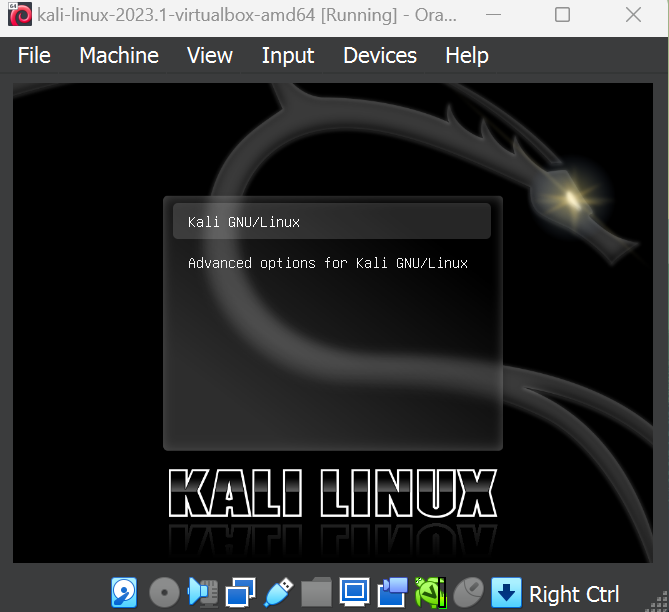
Step 4: It will ask you to choose an option to run kali, just select Kali GNU/Linux and press enter.
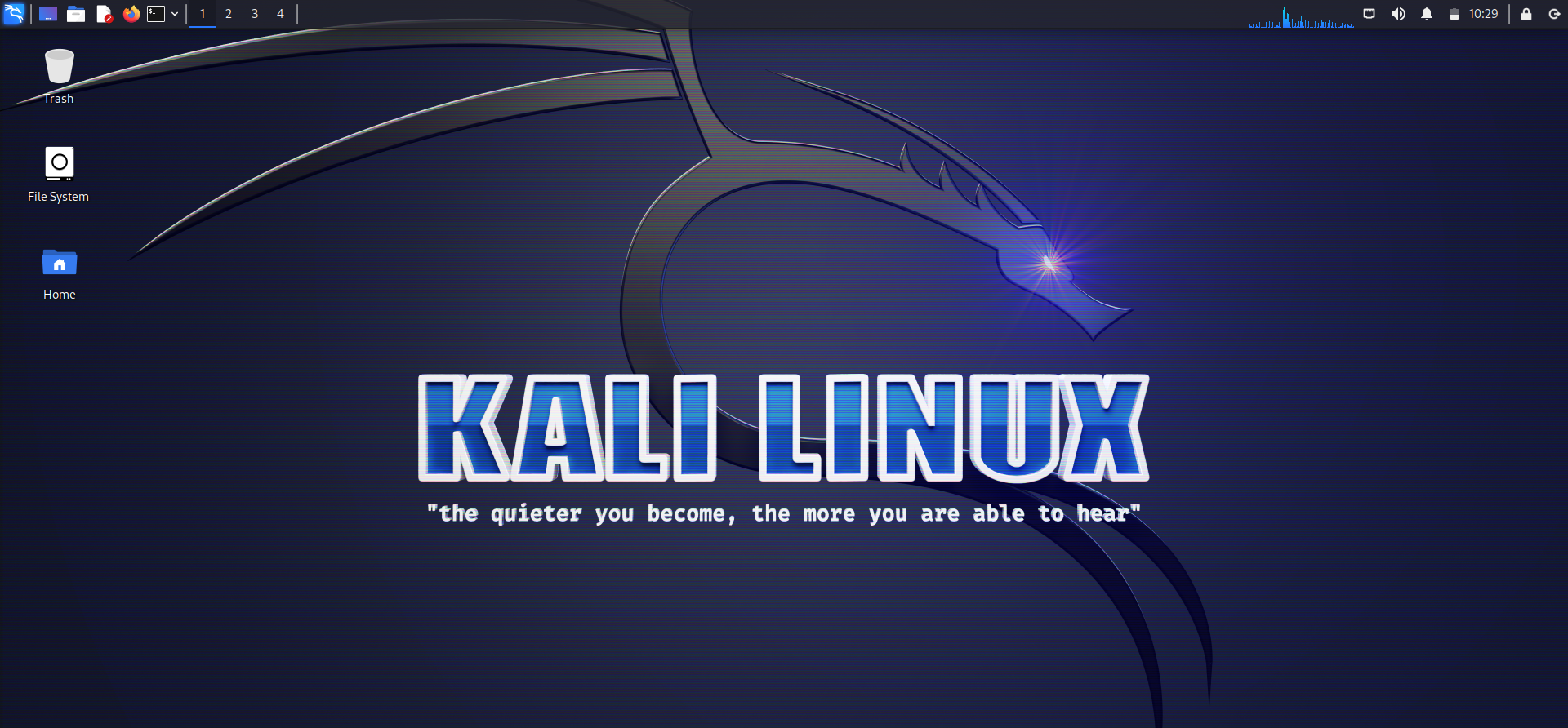
After a few seconds, it will ask for login credentials. Just fill in the default Username and password as kali and here you go!

You are inside your Kali Linux virtual machine.
💡Tip: Before installing new programs or trying to hack your neighbor's WiFi, you should update Kali Linux.
Updating Kali Linux
First, open the terminal by clicking on the terminal icon
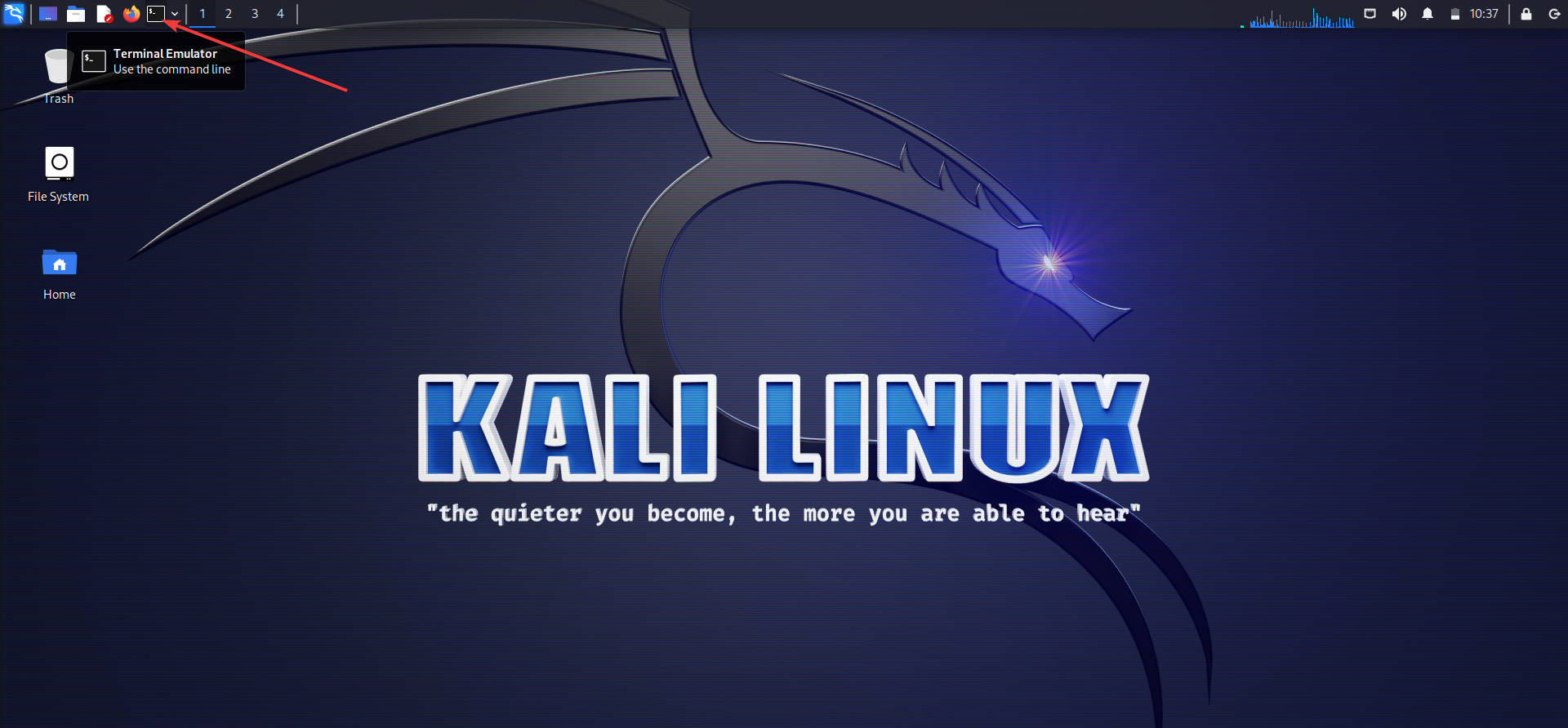
After that, we can run the following commands which will upgrade us to the latest Kali version
sudo apt update && sudo apt full-upgrade -y
It will ask you for the password, type the default password i.e. kali and press enter.
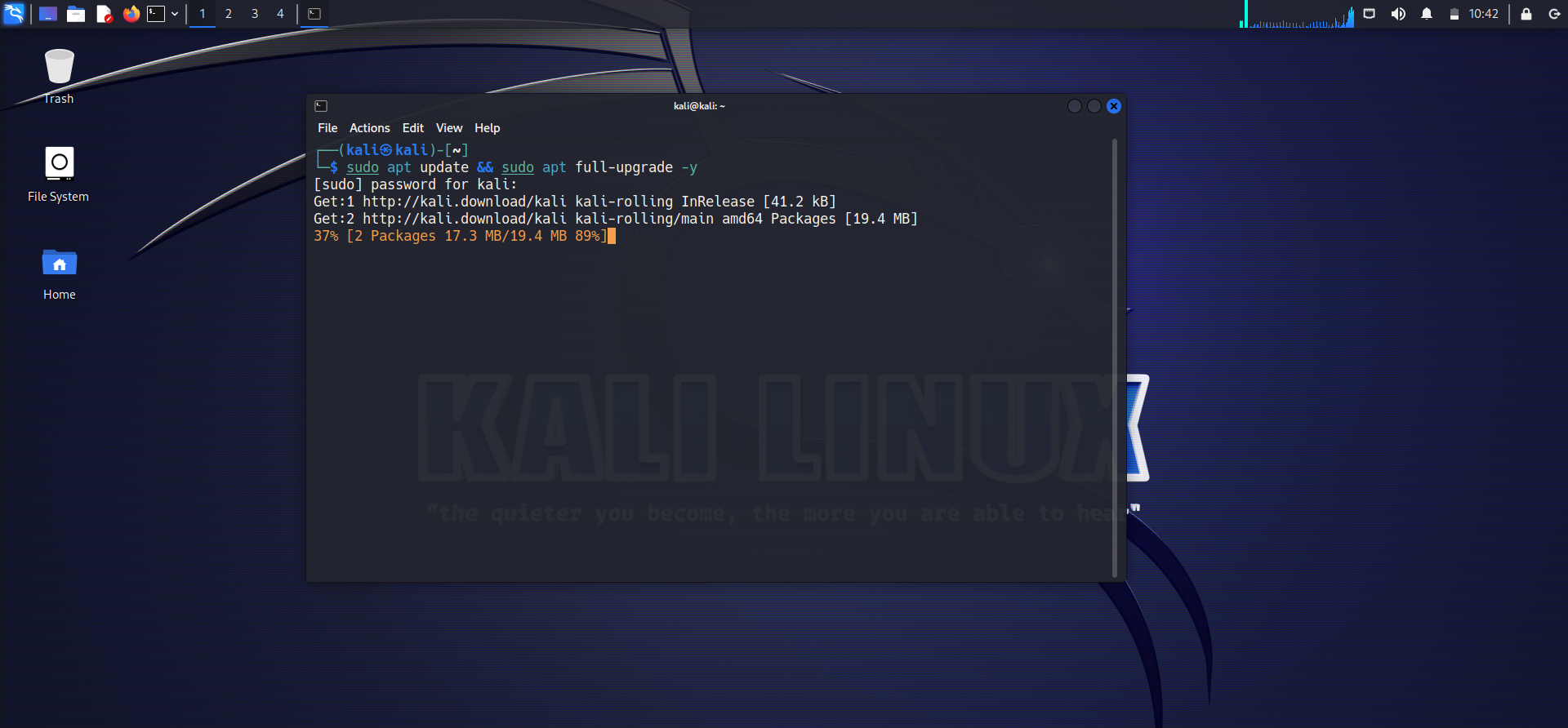
It will start updating. Be patient because it will take some time depending on your internet speed.
Once the update is finished, you can start hacking.